Kandji Installation
Before you begin, make sure you have downloaded the Cyberhaven Sensor for macOS and the Cyberhaven.mobileconfig MDM profile from the Console.
-
Create a custom app in Kandji.
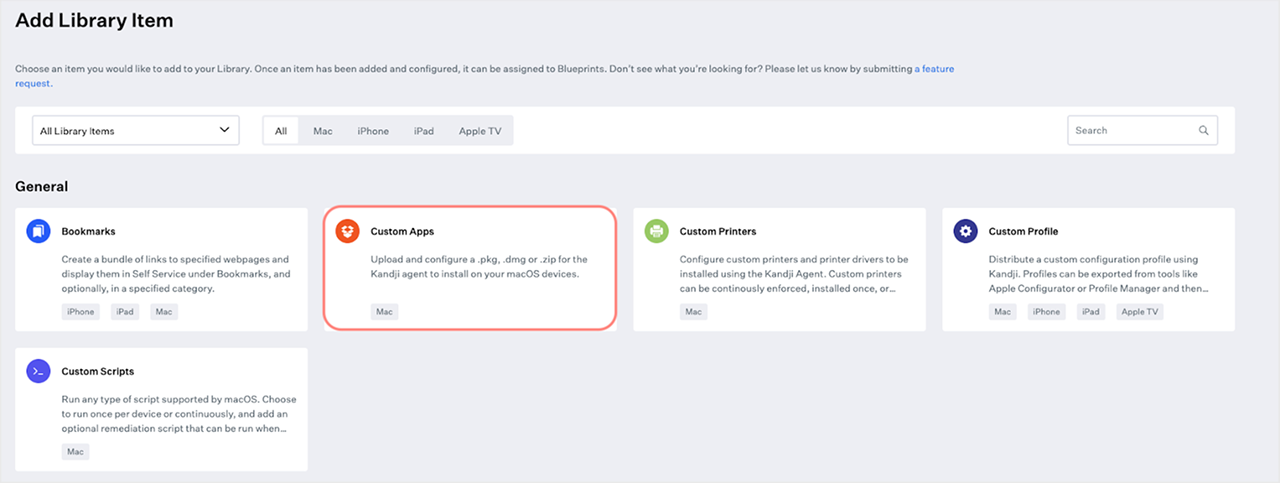
1.1. In the Kadji dashboard, navigate to Library and click Add new.
1.2. Select Custom apps from the options and click on Add and Configure to begin configuring the Cyberhaven app.
-
Configure the custom app.
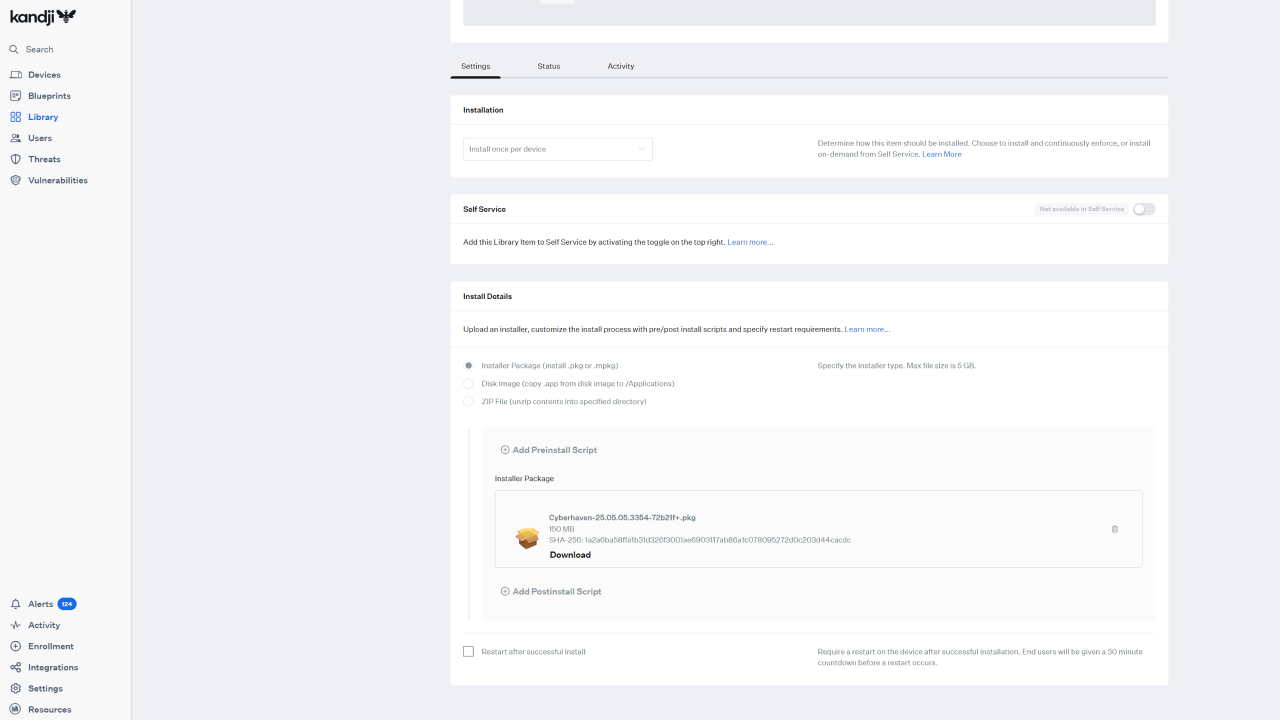
2.1. Give the app a name. For example, “Cyberhaven Installer”.
2.2. Assign the app to one or more blueprints to specify the devices where the app will be installed.
2.3. Specify the frequency for running the app.
2.4. Upload the Cyberhaven installer package.
2.5. Specify if the device should restart after the app is installed.
2.6. Click Save.
-
Create a custom profile and upload the custom configuration file.
3.1. Navigate to Library and click Add new.
3.2. Select Custom Profile from the options and click on Add and Configure to begin configuring the profile.
3.3. Give the profile a name. For example, “Cyberhaven Configuration Profile”.
3.4. Under Install on, select Mac.
3.5. Assign the profile to the same blueprints you selected for the custom app. See, step 2(b).
3.6. Upload
Cyberhaven.mobileconfigto the profile.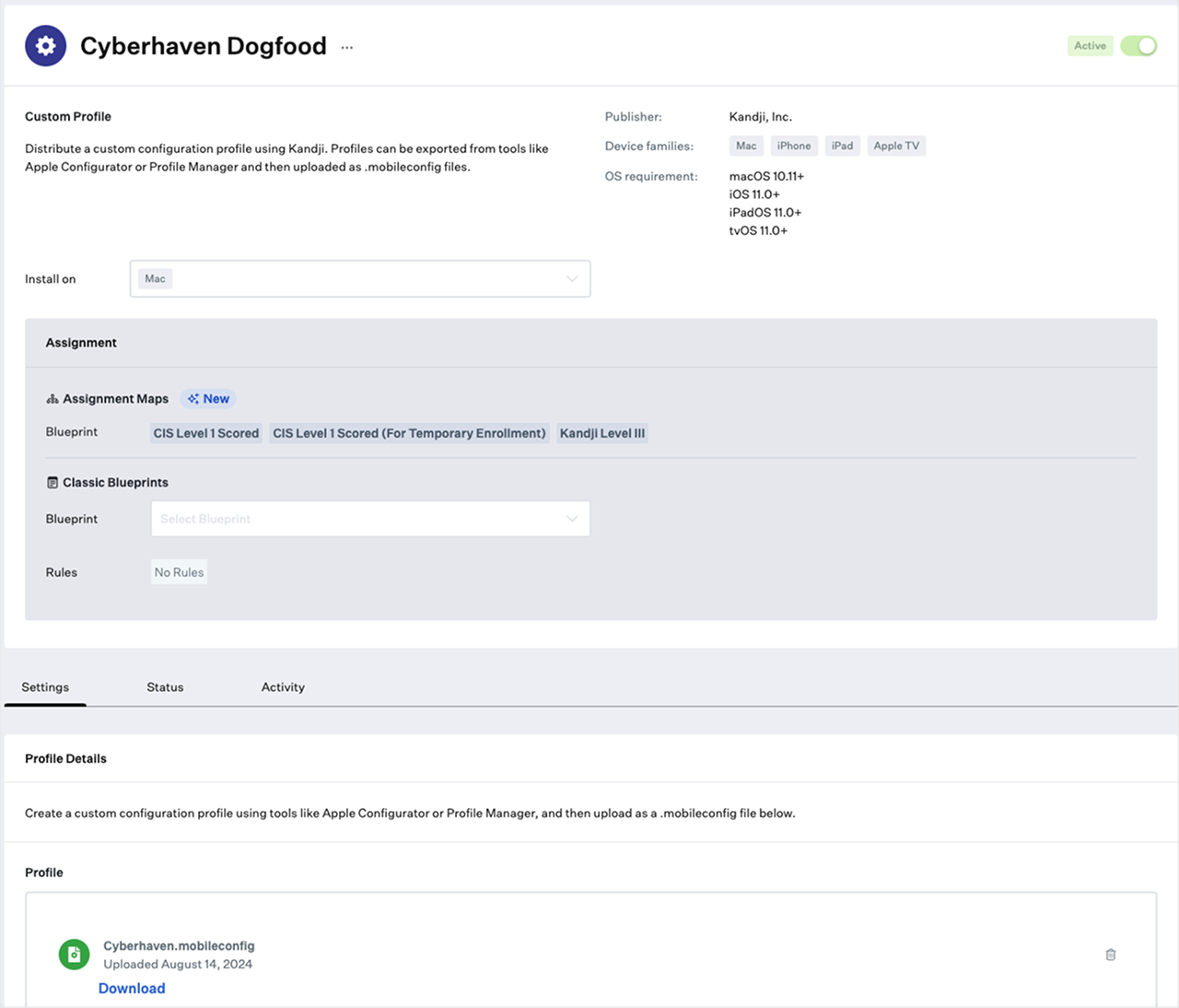
-
Ensure that the devices where you want to install the Cyberhaven custom app and custom profile are enrolled in the blueprints. This guarantees the seamless installation of the Cyberhaven Sensor on those devices, applying the correct settings automatically.
Known Issue: VPN Configuration Prompt
Some MDM solutions may prompt for a VPN hostname when uploading the Cyberhaven MDM profile (version 2.0.8 or later), due to the inclusion of inline proxy support for Microsoft Teams traffic inspection. If prompted, enter 127.0.0.1 as the VPN hostname to proceed with the upload. For details about Microsoft Teams support, see Microsoft Teams Support with Windows and macOS Sensors